
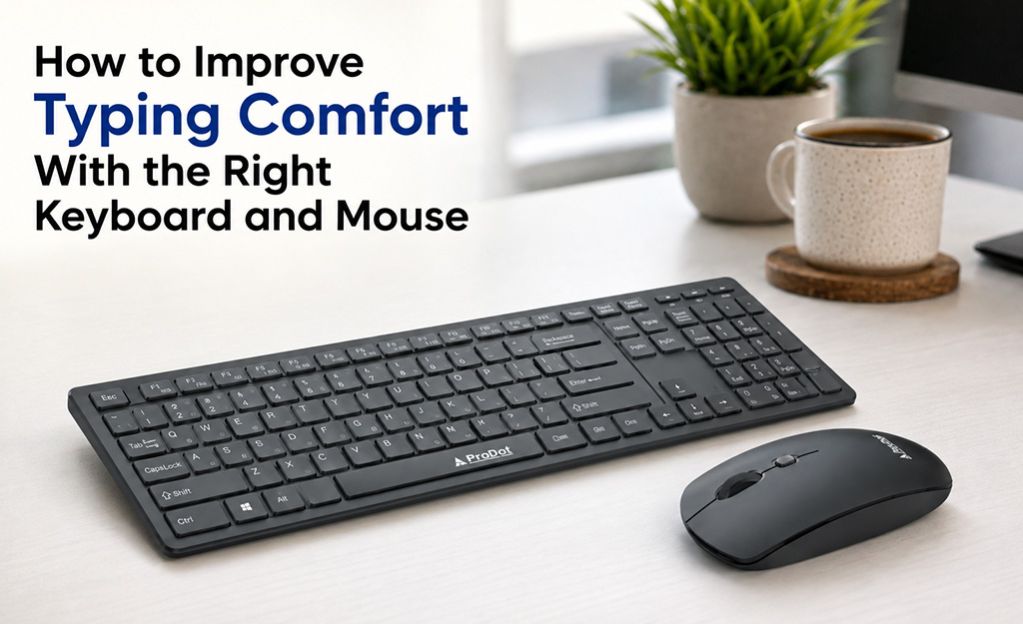
How To Improve Typing Comfort With The Right Keyboard And Mouse
Typing for long periods may add stress to your hands, wrists, shoulders, and neck if your keyboard and mouse are not positioned properly. Proper peripheral devices can increase your comfort when using a computer and allow you to move smoothly and efficiently.
However, good peripheral devices work best when you also have proper posture, positioning, and take enough breaks. Simple adjustments to your workstation can make a huge impact on how you type. Read on to learn more about practical ways to improve typing comfort with the right keyboard and mouse.
7 Tips to Improve Typing Comfort
Whether you want to set up an ergonomic workstation or improve your existing workspace, you should start with your keyboard and mouse. The following tips can help you achieve this goal.
1. Keep Your Keyboard at the Right Height
Your keyboard should be arranged so that your elbows are comfortable near your body and your forearms are relatively horizontal. Avoid arranging your keyboard so high that your shoulders are lifted or so low that your wrists are bent strongly.
Your keyboard should be near enough that you do not have to stretch your arms for it. Also, if your keyboard is adjustable, try different angles until you can comfortably type with a neutral wrist position.
2. Maintain Neutral Wrist Position
Keep your wrist straight and relaxed when typing. Try not to bend them up, down or to the side to reach your keys.
Do not type with hard pressure on your keyboard keys. Let your fingers fly across the keyboard. Think of your wrist rest as a place for your hands to relax during breaks, not a way to constantly push down on your wrists.
A comfortable design helps you hold your position. Prodot has a variety of keyboards for your everyday computing needs, good options to improve your computer workstation peripherals.
3. Choose a Mouse That Fits Your Hand
The ideal mouse is one where your hand can sit in its natural posture without needing to grip tightly. If the mouse is either too big or too small, you will be forced into an uncomfortable position with your fingers and wrist.
Select a design where the mouse feels easy to operate and where your fingers can comfortably reach all the buttons. Try to keep your grip light and let your forearm participate in the larger movements.
Prodot's mouse range provides options for everyday computer use, allowing users to pair a suitable pointing device with their keyboard for a more convenient desktop setup.
4. Keep the Keyboard and Mouse Close Together
Just like the selection of your peripheral devices, the positioning of these devices plays an essential role. The mouse must stay close to the keyboard so you don't have to reach for it constantly.
Your keyboard should be positioned in accordance with the most commonly used keys, while the mouse must be placed so that you do not have to reach out to it too often. This will help to cut down on unnecessary movements and make switching between keyboard and mouse tasks more natural.
The keyboard-mouse combination from Prodot will make it easy to select compatible peripherals for a more coordinated setup.
5. Release your shoulders and sit up straight
Even with the most comfortable keyboard and mouse, you may feel uncomfortable with an incorrect posture. Sit up straight, un-hinge your shoulders, don’t lean into your screen.
Your feet should be flat on the floor or on a footrest, and your head should be in a neutral position. Place the monitor so you don't have to bend your neck to see its contents.
A good posture allows your keyboard and mouse to work as part of a balanced workstation rather than forcing your body to compensate for an awkward setup.
6. Use a Light and Consistent Typing Touch
Most people press the keyboard keys harder than they actually need to, especially when performing complicated tasks. It can easily make your fingers tired and cause additional strain.
Try pressing the keys lightly while keeping your fingers relaxed. It is recommended to learn how to use all fingers needed for typing instead of constantly reaching the keys with one or two fingers. Moreover, using the keyboard shortcuts can help you perform your tasks without moving the mouse unnecessarily. Responsive keys may facilitate this process and allow you to press them gently.
7. Take Short Rests During Work
Even an excellent workstation becomes uncomfortable after prolonged usage. Try to have short pauses during computer work, stretch your fingers, move your hands, roll your shoulders, and change your sitting position.
During these pauses, you should also check your posture. If you notice that your wrists are bent, your shoulders are tense, or your mouse grip has become tight, make a quick adjustment before continuing.
Such small habits might help you better cope with prolonged computer work.
What to Look for When Choosing a Keyboard and Mouse
After adjusting the posture, the next step is picking suitable peripherals for yourself. Think about how much you use the computer, what kind of work you do and how much space is available on the desk.
Key points to consider are:
- Keyboard layout and size: Choose a keyboard layout that has the keys you need but is small.
- Key feel and sensitivity: Choose comfortable keys with proper sensitivity to minimize finger pressure .
- Mouse size and dimensions: Pick a mouse that is the right size for your hand and one that feels good in your hand when you use it.
- Connectivity: Determine the type of connectivity (wire or wireless) apt for your workplace.
- Durability and compatibility: Select reliable peripherals that match your computer system and are appropriate for the amount of use they are supposed to get.
Conclusion
Matching accessories and work methods is important to make typing more comfortable. Keep your keyboard and mouse within arm’s reach, wrist in a neutral position, choose the most suitable peripherals and don’t forget to take rest occasionally.
A good combination of keyboard and mouse along with the right setup at the workstation makes daily work easier and comfortable. If you’re upgrading your office or enhancing your personal workspace, opting for dependable peripherals from Prodot is a smart choice for an improved typing experience.
FAQs
1. Why does the right keyboard matter for typing comfort?
A comfortable keyboard supports natural hand position, reduces unnecessary finger strain, and promotes pro-long typing ease.
2. Should I choose a wired or wireless keyboard for comfort?
Both can be comfortable. Wired keyboards are simple and dependable for a fixed desk. On the other hand, wireless keyboards reduce cable clutter and offer flexibility.
3. Why should I buy Prodot’s keyboard and mouse combo?
Our combo consists of matching input devices for a coordinated setup. It is a preferred choice for those who want to upgrade both typing and scrolling comfort simultaneously.
4. Can I use a Prodot keyboard and mouse for a home office?
Yes. Prodot’s computer peripherals are ideal for office and home workspace.